Media gallery
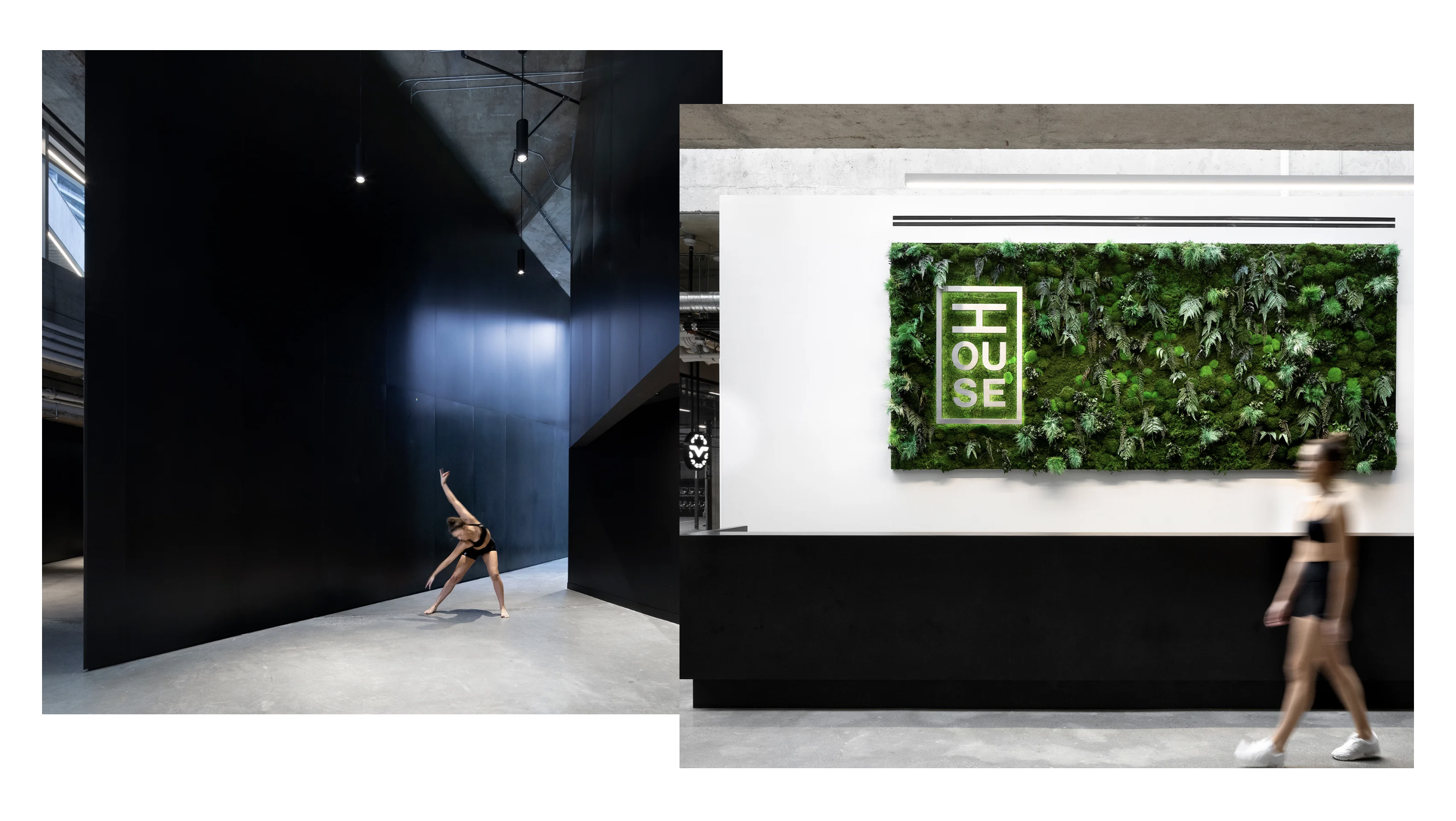
The Media Gallery section displays a grid of images and/or videos. Various layouts are available.
Settings
| Layout | Choose from Grid, Carousel or Media Stream |
| Margin | Sets the left/right margin of the section |
| Spacing | Sets the space between images |
| Color scheme | Sets the foreground and background color of the section |
| No. of columns - tablet | Range from 2-4 |
| No. of columns - desktop | Range from 2-6 |
Image and video blocks
By default, the section has two image blocks inserted. To add more image blocks or to add a video block, click “Add block”. To remove any block, hover over it and click the delete icon.
Note: All video in this section will autoplay and loop. Audio within videos is muted.
Within each image/video block you can specify:
Image | Choose an image from your library of image files or upload a new image. |
Video | Choose a video file from your library of video files or upload a new video. |
Width | Choose Auto, Small or Large. Auto will fit to the chosen column layout. Large will span all columns on a grid layout. |
Ratio | Set the aspect ratio with a choice of:
|
Position offset | Use this feature to get creative by applying an offset to the position of the image. You can set the vertical and horizontal position of the image. This feature can be used to create overlapping images and other creative compositions. |
Spacer blocks
Spacer blocks can be used to insert blank space within the grid layout. This can be used to create a design layout with interesting use of negative space.
